Capture. Drag.
Design.
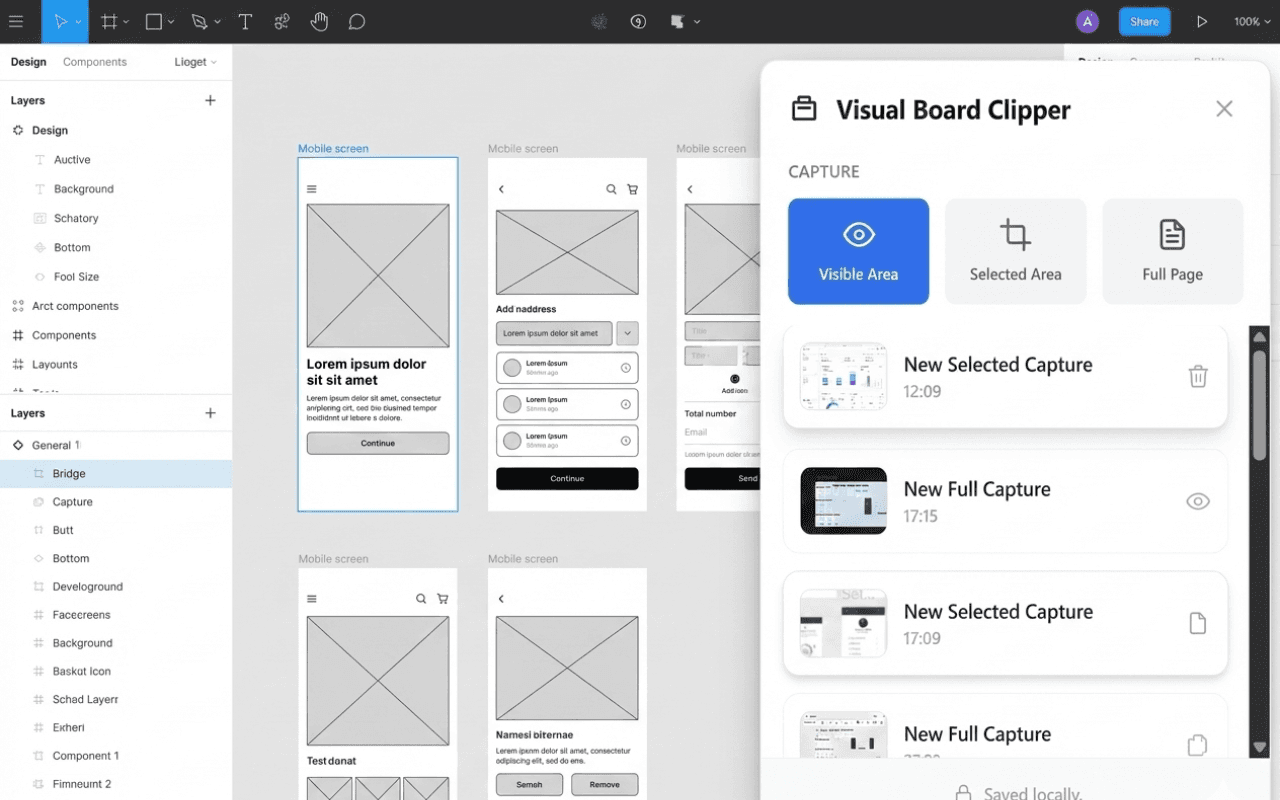
The bridge between your browser and your canvas. Capture screenshots and drag them directly into Figma, Miro, or Notion. No files, no clutter.
❌ The Old Way
You see a great design. You take a screenshot. It saves to your desktop as "Screenshot 2025...png". You open Finder. You drag it to Figma. Then you have to go back and delete the file from your desktop to save space.
✅ The Visual Clipper Way
You see a great design. You select the area. It appears in your side panel. You drag it instantly into your active Figma or Miro tab. No files are saved to your drive. Your desktop stays 100% clean.
Workflow
From Browser to Canvas
Build moodboards, annotate feedback, and drive inspiration without cluttering your desktop. Designed for speed and simplicity.
- Smart Capture Modes
Capture the entire visible page or use the precision crosshair to snag specific UI elements, ads, banners, or text blocks.
- Drag & Drop Workflow
Captures save instantly to your side panel library. Drag them directly onto your Miro board, Figma canvas, or Notion page.
- Private & Local
Your privacy matters. All your captures are stored locally in your browser cache. No cloud accounts, no sign-ups, and absolutely no tracking.
Frequently Asked Questions
Is Visual Clipper free?
Yes, Visual Clipper is completely free to use. There are no hidden subscriptions or paywalls. Our goal is to provide the best screenshot tool for designers.
Does it work with Figma and Miro?
Absolutely. The extension is optimized for browser-based design tools. If you use Figma or Miro in Chrome, Edge, or Brave, you can drag images directly onto your canvas.
Where are my images saved?
Privacy is our priority. Images are stored in your browser's local storage. We do not upload your screenshots to any cloud server.
Can I capture full-page screenshots?
Yes! Visual Clipper supports multiple modes: Visible Area, Selected Area, and Full Page capture. You can easily snag long landing pages or entire designs in one click.